SQLite -wal and -shm Files Explained (Don’t Delete Them Yet)
You open a folder and see your database, plus two extra files with odd endings. Something like data.db-wal and data.db-shm. They might be tiny, or the -wal file might be bigger than the database itself.
It’s tempting to delete them. Please don’t, at least not yet. These files are part of how SQLite keeps your data safe, and the -wal file may hold changes that aren’t in the main database yet.
This guide explains what these files are in plain words, when they’re safe to remove, and how to fold their contents back into the main file properly.
The short version
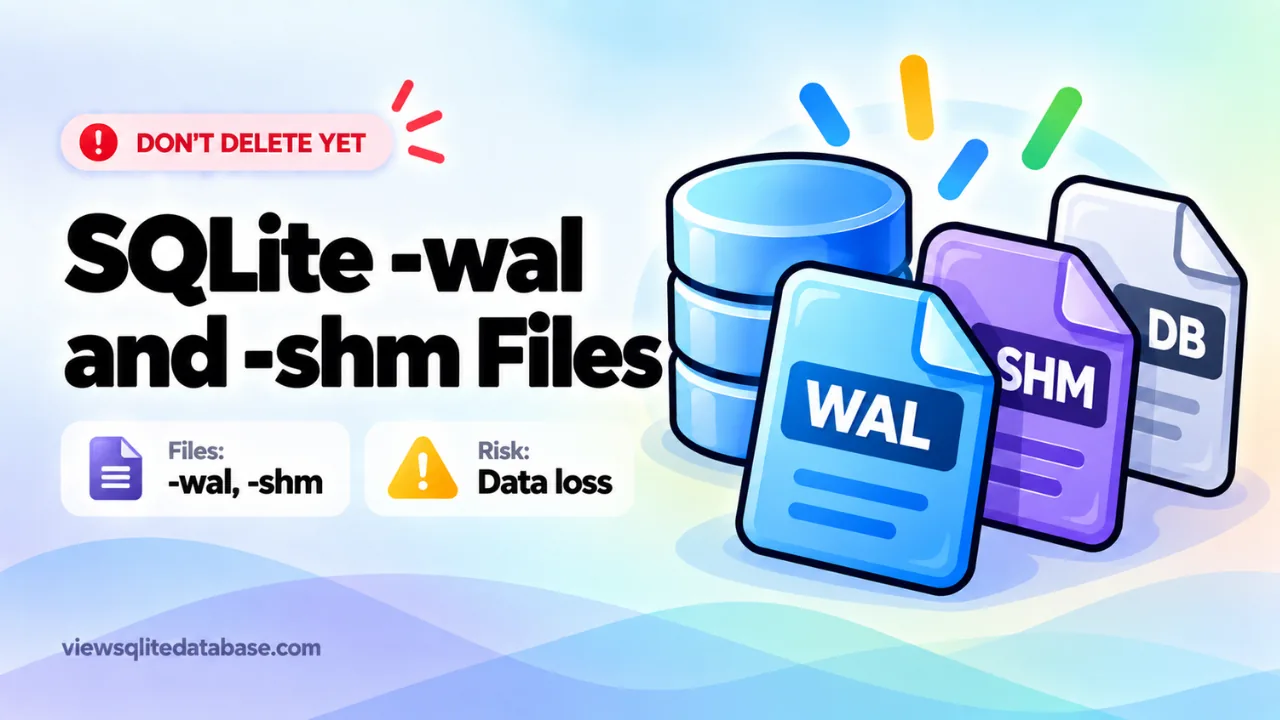
- -wal stands for write-ahead log. It holds recent changes waiting to be copied into the main database.
- -shm stands for shared memory. It’s a small index that helps different connections coordinate. It holds no unique data of its own.
- Both appear when a database uses WAL mode, a setting many apps turn on for speed.
- Never delete the -wal file while the database is in use or before its changes have been merged. You can lose recent data.
How WAL mode works
SQLite can save changes in two main ways.
The older way: rollback journal
Before changing the database, SQLite copies the original pages into a -journal file. Then it writes the changes straight into the database. If something goes wrong, it uses the journal to undo the half-finished change. When all is well, the journal is deleted.
In this mode, readers and writers block each other. While someone writes, others wait.
The newer way: write-ahead log
In WAL mode, SQLite does it the other way round. New changes are appended to the -wal file first. The main database file stays untouched for a while.
Readers look at the main file plus any newer pages in the -wal file. Writers keep adding to the -wal file. Because the main file isn’t being rewritten all the time, readers and a writer can work at the same time without blocking each other.
Every so often, SQLite copies the changes from the -wal file back into the main database. This is called a checkpoint. After a checkpoint, the -wal file can be reused from the start.
The -shm file is a small shared index. It helps every connection find the right pages in the -wal file quickly. SQLite can rebuild it if needed.
Why the -wal file can be so big
Checkpoints happen automatically, usually when the -wal file reaches about 1000 pages. But a checkpoint can’t finish while a reader is still using old pages. If an app keeps a long-running read open, the -wal file can keep growing.
A large -wal file isn’t a sign of damage. It just means changes are waiting to be merged, or the file hasn’t been reset since a busy period.
Is it safe to delete -wal and -shm files?
Here’s a simple rule set.
| Situation | Delete -wal? | Delete -shm? |
|---|---|---|
| The app using the database is running | No | No |
| The app closed normally | Usually already gone or empty | Usually already gone |
| The app crashed | No. It holds changes needed for recovery. | Safe, but no benefit |
| You’re copying the database somewhere | No. Copy it along with the database. | Copy it too, or let SQLite rebuild it |
| After a manual checkpoint with nothing using the file | Safe | Safe |
When an app closes its last connection cleanly, SQLite normally runs a final checkpoint and removes both files. If you still see them, either the app is running, it crashed, or it keeps the files around on purpose.
What happens if you delete the -wal file too early?
Any changes that were only in the -wal file are gone. That might be a few seconds of work, or it might be hours of messages, orders or notes. In the worst case, the main database is left in a state that doesn’t match what the app expects, and you’ll see errors.
If you’ve already deleted a -wal file and data is missing or broken, check our guide to repairing a corrupted SQLite database and look for backups.
How to merge the -wal file back safely
If you want a single, self-contained database file, run a checkpoint.
- Close every app that uses the database.
- Make sure the database, -wal and -shm files are all in the same folder with matching names.
- Open the database with the sqlite3 command line:
sqlite3 data.db- Run a full checkpoint:
PRAGMA wal_checkpoint(TRUNCATE);This copies every change into the main file and shrinks the -wal file to zero bytes.
- If you want to leave WAL mode entirely, switch back to the classic journal:
PRAGMA journal_mode = DELETE;- Type
.quit. With no connections left, SQLite removes the extra files.
Now you have one file that contains everything. It’s safe to copy, email or archive. Just remember that if an app turns WAL mode back on, the files will return. That’s normal.
Copying a database that has a -wal file
This is where most data loss happens. People copy only the .db file and leave the -wal behind. The copy then looks old or incomplete.
To copy safely, do one of these:
- Close the app, then copy all three files together. Keep the names matching.
- Run a checkpoint first, as shown above, then copy the single file.
- Use the backup command, which makes a clean copy even while the app runs:
sqlite3 data.db ".backup copy.db"The result is a single file with all committed data.
Opening a database with a -wal file in a viewer
Most desktop tools, including the sqlite3 command line and DB Browser for SQLite, read the -wal file automatically if it sits next to the database with the matching name.
Browser-based viewers, including ours, open a single file you choose. They can’t see a separate -wal file. So before opening a database in our online SQLite viewer, close the owning app and either copy the database after a clean shutdown or run a checkpoint. That way the main file contains everything. If tables look empty or out of date, a leftover -wal file is the usual reason.
Where you’ll see WAL files in real life
WAL mode is common, so these files turn up in many places:
- Browsers. Firefox uses WAL for places.sqlite and other profile databases. Chrome’s History file has its own journal file next to it. Our Chrome history guide explains how to copy it safely.
- Android apps. Most modern apps use WAL by default. WhatsApp’s database, for example, often has an
msgstore.db-walfile beside it. See our msgstore.db guide. - iPhone and Mac apps. Core Data stores commonly use WAL, so you’ll see -wal and -shm files next to .sqlite databases.
- Django and other web frameworks. If you enabled WAL to reduce locking, you’ll see
db.sqlite3-walwhile the server runs. Our .sqlite3 file guide covers Django databases.
In every one of these cases, the rule is the same. Close the app, then copy all the files together.
How to check which mode a database uses
Run this in any SQLite tool:
PRAGMA journal_mode;It returns wal, delete, truncate, persist, memory or off. The mode is stored in the database for WAL, so it stays on until someone changes it.
Should you use WAL mode in your own apps?
For most apps, yes. WAL mode:
- Lets readers and a writer work at the same time
- Is usually faster for writes
- Cuts down “database is locked” errors
Our guide to the database is locked error explains why.
A few cases where you might not use it:
- The database lives on a network drive. WAL needs shared memory, which doesn’t work across machines.
- You need a single file at all times, for example a document format that users copy around.
- Very old SQLite versions (before 3.7.0) can’t read WAL-mode files.
Want the technical detail? See the official SQLite write-ahead logging documentation.
Frequently asked questions
Why do -wal and -shm files appear when I only opened the database?
Some tools turn on WAL mode, or the database was already in WAL mode. Opening it creates the files. They disappear when the last connection closes cleanly.
Can I open the -wal file on its own?
No. It isn’t a database. Opening it gives a “file is not a database” error. Open the main file instead.
Why is my -wal file bigger than the database?
Checkpoints couldn’t finish, usually because a reader stayed open. Close all connections and run PRAGMA wal_checkpoint(TRUNCATE);.
Does the -shm file contain my data?
No. It’s a temporary index that SQLite can rebuild.
Summary
The -wal file holds recent changes waiting to be merged into your SQLite database, and the -shm file helps connections coordinate. Don’t delete the -wal file while the database is in use or after a crash. To get a single clean file, close the app and run PRAGMA wal_checkpoint(TRUNCATE);, or make a copy with .backup. Then open it in our free SQLite viewer. For more on reading files, see how to view a SQLite DB file.