SQLite “Database Is Locked”: Causes and Fixes
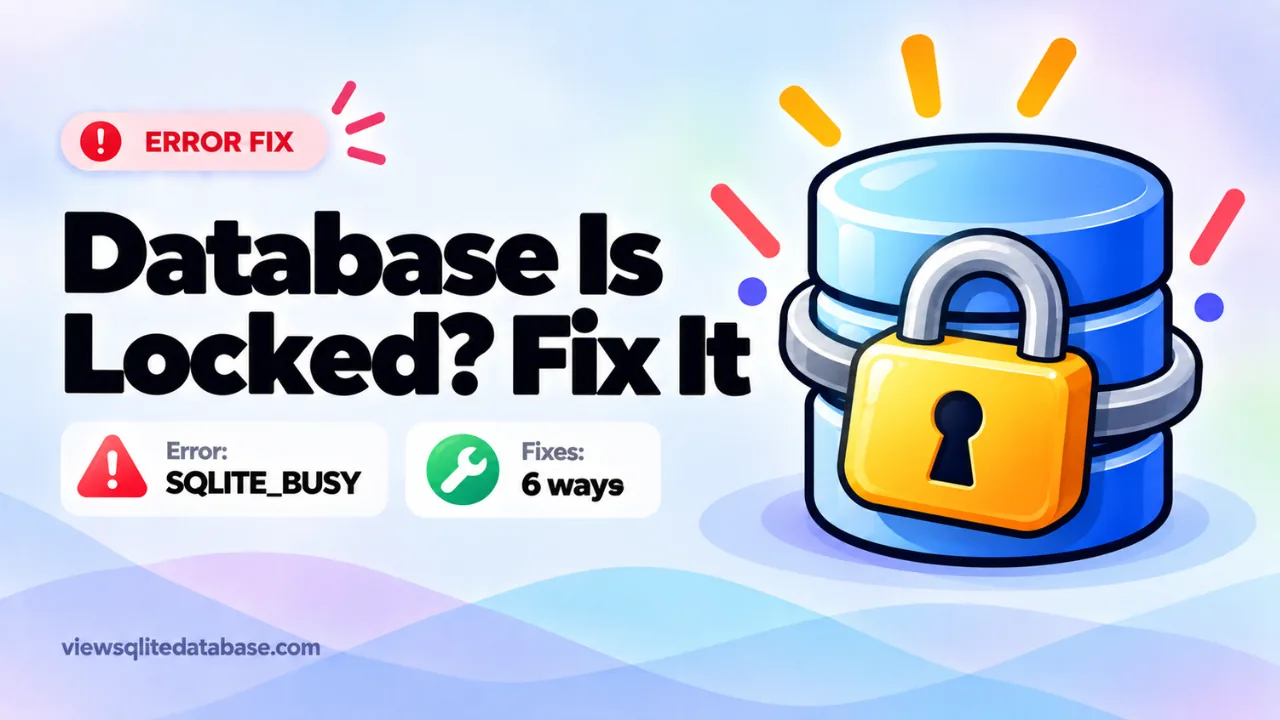
“Database is locked” is one of the most common SQLite errors. It shows up in desktop apps, Python scripts, Django projects, mobile apps and command-line sessions. It’s frustrating because it often appears at random and then vanishes.
The cause is almost always the same: two things tried to use the database at once, and one of them had to wait too long. This guide explains how SQLite locking works in plain words, how to find the culprit, and the fixes that actually work.
What the error means
SQLite lets many readers work at once, but only one writer at a time. When a connection wants to write, it takes a lock on the database. Other connections that want to write must wait until that lock is released.
If a connection waits too long, SQLite gives up and returns error code 5, called SQLITE_BUSY. The message is “database is locked.”
So the error doesn’t mean your file is broken. It means something else was busy with the database at that moment.
The quick fix for a single file
If you’re just trying to look at a database and you see this error:
- Close the app that owns the database. For example, quit Chrome before opening its History file.
- Copy the database to another folder. Also copy any
-waland-shmfiles next to it. - Open the copy.
Our online SQLite viewer never locks your original file, because it reads a copy into your browser’s memory. If you just need to see the data, drop the file in and you’re done.
Common causes
1. Another program has the file open
This is the most common cause when you’re opening an app’s database by hand. Browsers, chat apps and note apps keep their databases open while running.
Fix: quit the app fully, or work on a copy.
2. A transaction was left open
A connection starts a write transaction and never commits or rolls back. The write lock stays in place until that connection closes.
This often happens in code when an error is thrown between BEGIN and COMMIT, or when a developer forgets to commit.
Fix: always commit or roll back. In Python, use the connection as a context manager so it commits or rolls back for you:
import sqlite3

con = sqlite3.connect("app.db")
with con:
    con.execute("UPDATE items SET qty = qty - 1 WHERE id = ?", (5,))
con.close()
3. A read cursor is still open
In some modes, an unfinished read can block a writer, especially in the older rollback journal mode. A loop that reads rows slowly while another part of the code tries to write can trigger the error.
Fix: fetch the rows you need, then close the cursor before writing. Or switch to WAL mode (see below).
4. Two processes writing at the same time
A web app with several worker processes, plus a background job, plus a cron script, can all try to write at once. SQLite handles this by making them take turns. If a write takes too long, others time out.
Fix: keep writes short, set a busy timeout, and consider WAL mode. If you have heavy concurrent writes, a server database like PostgreSQL may be a better fit.
5. The database is on a network drive
SQLite relies on file locking from the operating system. Network file systems like NFS and SMB shares often implement locking poorly. This can cause false “locked” errors, or worse, corruption.
Fix: keep SQLite databases on a local disk. Don’t share one database file between computers over a network.
6. A tool is holding the file
Database browsers, backup software, antivirus scanners and sync tools like Dropbox can open the file briefly. Usually it’s harmless, but it can collide with a write.
Fix: close database browsers when your app is running. Exclude the database folder from real-time scanning or syncing if you see repeated problems.
Fix 1: Set a busy timeout
By default, some SQLite setups give up immediately when the database is busy. A busy timeout tells SQLite to wait and retry for a while before failing.
In SQL:
PRAGMA busy_timeout = 5000;That’s 5000 milliseconds, or five seconds.
In Python, the timeout argument does the same thing. It defaults to five seconds:
con = sqlite3.connect("app.db", timeout=10)In the sqlite3 command-line shell:
.timeout 5000A busy timeout won’t fix a lock that’s never released, but it smooths over short collisions.
Fix 2: Turn on WAL mode
Write-ahead logging, or WAL, changes how SQLite handles changes. Readers and a writer can work at the same time without blocking each other. For most apps, it greatly reduces “database is locked” errors.
Turn it on once:
PRAGMA journal_mode = WAL;The setting is saved in the database file. After this, you’ll see -wal and -shm files next to your database while it’s in use. That’s normal. Our upcoming guide to WAL files explains what they do.
WAL mode still allows only one writer at a time. It just stops readers and writers from blocking each other.
Fix 3: Keep transactions short
The longer a write transaction runs, the longer everyone else waits. Good habits:
- Do slow work, like network calls or file processing, before opening the transaction.
- Group many inserts into one transaction instead of one per row. It’s much faster overall.
- Commit as soon as the writes are done.
Fix 4: Use one writer
If many parts of your app write to the same database, consider sending all writes through one place, such as a queue or a single worker. This removes write contention completely.
Django and “database is locked”
Django’s development setup uses SQLite by default, so this error shows up often. Common triggers:
- Running the dev server and a management command that writes at the same time
- Long-running requests holding a transaction open
- Having the database open in a GUI tool with an uncommitted change
Fixes:
- Increase the timeout in settings:
DATABASES = {
    "default": {
        "ENGINE": "django.db.backends.sqlite3",
        "NAME": BASE_DIR / "db.sqlite3",
        "OPTIONS": {"timeout": 20},
    }
}- Close GUI tools or make sure they don’t have pending edits.
- For production with real traffic, use PostgreSQL or MySQL.
Our guide to the .sqlite3 file covers more about Django databases.
Locked files when you’re just trying to read data
Many people hit this error without writing any code. They’re simply trying to open a database from an app to look at it. Here’s what usually happens and what to do.
- Browser history files. Chrome and Firefox hold their databases open. Quit the browser, then copy the file. Our Chrome history guide shows the exact steps.
- Mac app databases. Apps like Messages and Safari keep their files busy. Copy them first, as explained in our Mac guide.
- Windows app databases. Files in AppData are often in use. Close the app from the system tray too, not just the main window. Our Windows guide covers where these files live.
Once you have a clean copy, open it in any viewer. The lock only applies to the original file, not the copy.
What not to do
Some fixes found online cause more harm than good:
- Don’t delete the -wal or -shm files to “unlock” a database. The -wal file may hold recent changes that aren’t in the main file yet. Deleting it can lose data.
- Don’t delete a -journal file while an app is running. It’s used to undo a half-finished write after a crash.
- Don’t copy the database while an app is writing to it and expect a perfect copy. Close the app first, or use the sqlite3
.backupcommand, which makes a safe copy of a live database.
If a database was damaged by one of these mistakes, our guide to repairing a corrupted SQLite database can help.
How to find what’s holding the lock
SQLite doesn’t keep a list of who holds a lock. You find the culprit at the operating system level.
- Linux: run
lsof app.dborfuser app.dbto list processes using the file. - Mac: run
lsof app.dbin Terminal. - Windows: use Resource Monitor. Open the CPU tab and search the file name in Associated Handles.
Close or restart the process you find.
“Database is locked” vs “database table is locked”
They sound alike but differ:
| Message | Code | Meaning |
|---|---|---|
| database is locked | SQLITE_BUSY (5) | Another connection holds a lock |
| database table is locked | SQLITE_LOCKED (6) | A conflict inside the same connection, often a statement still running on the table |
For the second one, finish or reset the running statement before changing the table.
Want the technical detail? See the official SQLite file locking documentation.
Frequently asked questions
Is my database damaged when this error appears?
No. The error is about timing, not damage. Your data is fine.
Why does it only happen sometimes?
Because it depends on timing. Two writes have to overlap, and one has to wait longer than the timeout.
Does WAL mode fix everything?
It fixes most reader and writer conflicts. Two writers still have to take turns.
Can a SQLite viewer lock my app’s database?
A desktop tool that opens the live file can. Our browser viewer works on an in-memory copy, so it can’t lock your original.
Summary
“Database is locked” means another connection was busy writing when yours needed access. For a quick look at a file, close the owning app or open a copy in our free SQLite viewer. For your own code, commit transactions promptly, set a busy timeout, switch to WAL mode, and keep the database on a local disk. If you’re seeing other errors, our guide to the file is not a database error may help.