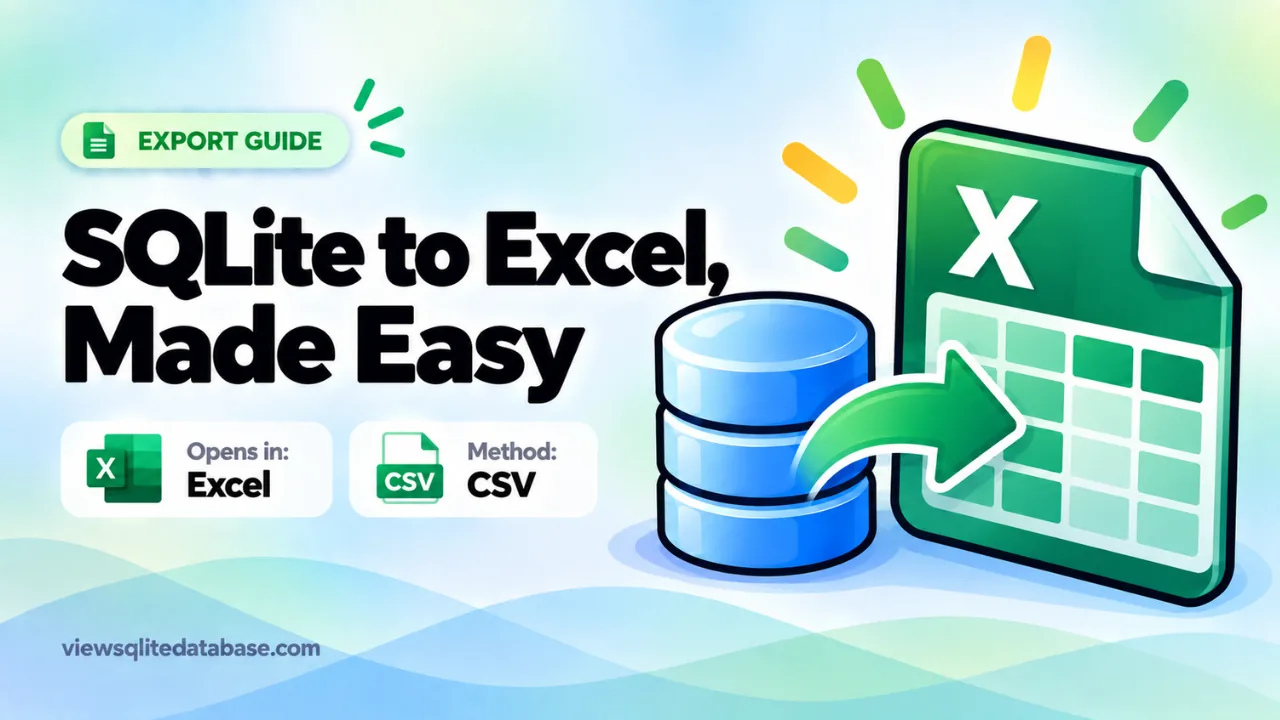
How to Convert a SQLite Database to Excel
Excel is where most people want their data to end up. But Excel can’t open a SQLite file directly. Try it, and you’ll get an error or a screen of nonsense.
The good news is that getting SQLite data into Excel is easy once you know the routes. This guide covers three ways, from a two-minute export that needs no install to a live connection that refreshes. We’ll also fix the classic Excel annoyances: broken accents, vanishing zeros and dates that show up as big numbers.
The short answer
- Open your database in our free online SQLite viewer.
- Click the table you want.
- Click Export CSV.
- Open the CSV in Excel.
For most people, that’s all it takes. The rest of this guide explains the details and the other options.
Method 1: Export to CSV, then open in Excel
CSV is a simple text format that Excel reads well. It’s the most reliable route.
Step 1: Open the database
Go to our online SQLite viewer and drop in your .db, .sqlite or .sqlite3 file. The file stays on your computer. Nothing is uploaded.
Step 2: Pick the data
Click a table in the sidebar to export all of it. If you only want some rows or columns, switch to Run SQL and write a query, such as:
SELECT order_id, customer, total,
  datetime(created_at, 'unixepoch') AS created
FROM orders
WHERE total > 100;
Converting dates in the query saves work later.
Step 3: Export
Click Export CSV. The file lands in your Downloads folder.
Step 4: Open it in Excel
Double-click the CSV, or in Excel use File, then Open. For best results with special characters, use Data, then From Text/CSV. This lets you check the encoding and column types before loading. More on that below.
Step 5: Save as .xlsx
A CSV holds only values. Once the data is in Excel, save it as an Excel workbook (.xlsx) so you can add formatting, formulas and charts.
Our full SQLite to CSV guide covers more export options, including the command line and exporting many tables at once.
Method 2: Connect Excel to SQLite with ODBC (Windows)
If you want Excel to pull data straight from the SQLite file, and refresh it later, you can use an ODBC driver. This is more setup, but useful for reports you update often.
- Install a SQLite ODBC driver. A free, widely used one is the SQLite ODBC driver by Christian Werner. Pick the version that matches your Excel (64-bit for most modern installs).
- Open ODBC Data Sources from the Start menu.
- Add a new data source using the SQLite3 ODBC driver. Point it at your database file.
- In Excel, go to Data, then Get Data, then From Other Sources, then From ODBC.
- Choose your data source and pick the tables to load.
Excel loads the data through Power Query. Later, click Refresh to pull in new rows.
A few cautions:
- The app that owns the database should be closed, or you may hit a database is locked error.
- 32-bit and 64-bit mismatches are the most common setup problem.
- On Mac, ODBC setup is more involved. The CSV route is usually simpler.
Method 3: Python for repeatable exports
If you need the same export every week, a short script does it. With pandas and openpyxl installed:
import sqlite3
import pandas as pd

con = sqlite3.connect("shop.db")
with pd.ExcelWriter("shop.xlsx") as writer:
    for table in ["customers", "orders", "products"]:
        df = pd.read_sql_query(f"SELECT * FROM {table}", con)
        df.to_excel(writer, sheet_name=table, index=False)
con.close()
This creates one workbook with a sheet per table. Real Excel files keep types better than CSV, so dates and numbers often come through cleaner.
Which method should you choose?
| Your situation | Best method |
|---|---|
| One-off export | CSV from the online viewer |
| No install allowed | CSV from the online viewer |
| Report that refreshes from the same file | ODBC on Windows |
| Weekly automated workbook | Python |
| Many tables in one workbook | Python |
Fixing common Excel problems
Accents and symbols look broken
If “José” shows as “José,” Excel read the file with the wrong encoding. Our viewer adds a UTF-8 marker to its CSV exports, which fixes this in most cases. If you still see problems, import with Data, then From Text/CSV, and set File Origin to 65001: Unicode (UTF-8).
Leading zeros disappear
Excel turns “007” into 7. For ZIP codes, phone numbers and IDs, import with From Text/CSV, click Transform Data, and set those columns to Text.
Long numbers turn into scientific notation
Excel keeps only 15 significant digits. IDs longer than that get rounded and shown like 1.23E+18. Import those columns as Text. You can also turn them into text in SQL:
SELECT CAST(big_id AS TEXT) AS big_id, name FROM items;Dates show as big numbers
SQLite has no date type, so apps store dates as numbers or text. Convert them before exporting:
| Stored as | Query to convert |
|---|---|
| Unix seconds | datetime(col, 'unixepoch') |
| Unix milliseconds | datetime(col / 1000, 'unixepoch') |
| Apple seconds since 2001 | datetime(col + 978307200, 'unixepoch') |
| Chrome microseconds since 1601 | datetime(col / 1000000 - 11644473600, 'unixepoch') |
The result is text like “2026-09-26 10:30:00,” which Excel recognises as a date.
Everything lands in one column
Some Excel setups expect semicolons instead of commas. Use From Text/CSV and choose Comma as the delimiter.
Too many rows
An Excel sheet holds up to 1,048,576 rows. If your table is bigger, filter it with a query, split it into several exports, or use Power Query’s data model instead of a sheet.
Clean the data before it reaches Excel
It’s much easier to tidy data with a query than with Excel formulas afterwards. A few quick wins:
Rename columns
Database column names like cust_nm aren’t friendly. Rename them in the query:
SELECT cust_nm AS "Customer name", tot AS "Order total"
FROM orders;
The CSV header uses your new names.
Replace codes with words
If a status column holds numbers, turn them into labels:
SELECT id,
  CASE status WHEN 1 THEN 'Paid' WHEN 2 THEN 'Shipped' ELSE 'Open' END AS status
FROM orders;
Join related tables
Instead of exporting two tables and matching them with VLOOKUP, join them first:
SELECT o.id, c.name, o.total
FROM orders o
JOIN customers c ON c.id = o.customer_id;
Round numbers
SELECT name, ROUND(price, 2) AS price FROM products;Each of these saves you manual work in Excel and makes the export easier for others to read.
Keeping sensitive columns out
SQLite databases often hold more than you mean to share. User tables can include password hashes, tokens or personal details. Before you export for someone else, list only the columns they need in your SELECT. Never use SELECT * on a users table for a shared report.
Google Sheets and Numbers
The same CSV works elsewhere:
- Google Sheets: File, then Import, then Upload. Choose “Detect automatically” for the separator.
- Apple Numbers: open the CSV directly. Numbers reads UTF-8 well.
A worked example
Say you have a Django project’s db.sqlite3 and your manager wants a spreadsheet of sign-ups by month.
- Open the file in the viewer.
- In Run SQL, type:
SELECT strftime('%Y-%m', date_joined) AS month,
       COUNT(*) AS signups
FROM auth_user
GROUP BY month
ORDER BY month;- Run it and click Export CSV.
- Open the CSV in Excel and add a chart.
You now have a clean monthly table without exposing any user emails or password hashes. Our .sqlite3 file guide explains more about Django databases.
Opening the exported file on a phone
If you’re working on Android or iPhone, you can still get SQLite data into a spreadsheet. Open the database in the viewer in your mobile browser, tap Export CSV, then open the downloaded file in the Excel or Google Sheets app. Our Android guide shows each step on a phone.
Want the technical detail? See the official SQLite command-line shell documentation.
Frequently asked questions
Can Excel open .db files?
Not directly. Excel doesn’t read the SQLite format. Export to CSV first, or connect through an ODBC driver.
Can I convert SQLite to Excel online?
Yes. Open the file in our online viewer, export the table as CSV, and open it in Excel. Your data stays on your device.
Will the formatting carry over?
SQLite doesn’t store formatting, only values. You add formatting in Excel after importing.
Can I get every table into one workbook?
With CSV, you export each table separately and paste them into sheets. With Python, one script builds a workbook with a sheet per table.
Summary
To convert a SQLite database to Excel, export the table or query as CSV from our free SQLite viewer and open it in Excel. Use ODBC on Windows if you need a live, refreshable connection, or Python for automated workbooks. Convert dates in your query, and import with UTF-8 and Text columns to avoid Excel’s usual surprises. New to SQLite files? Start with how to read a SQLite file.