How to Read a SQLite File: A Beginner’s Guide
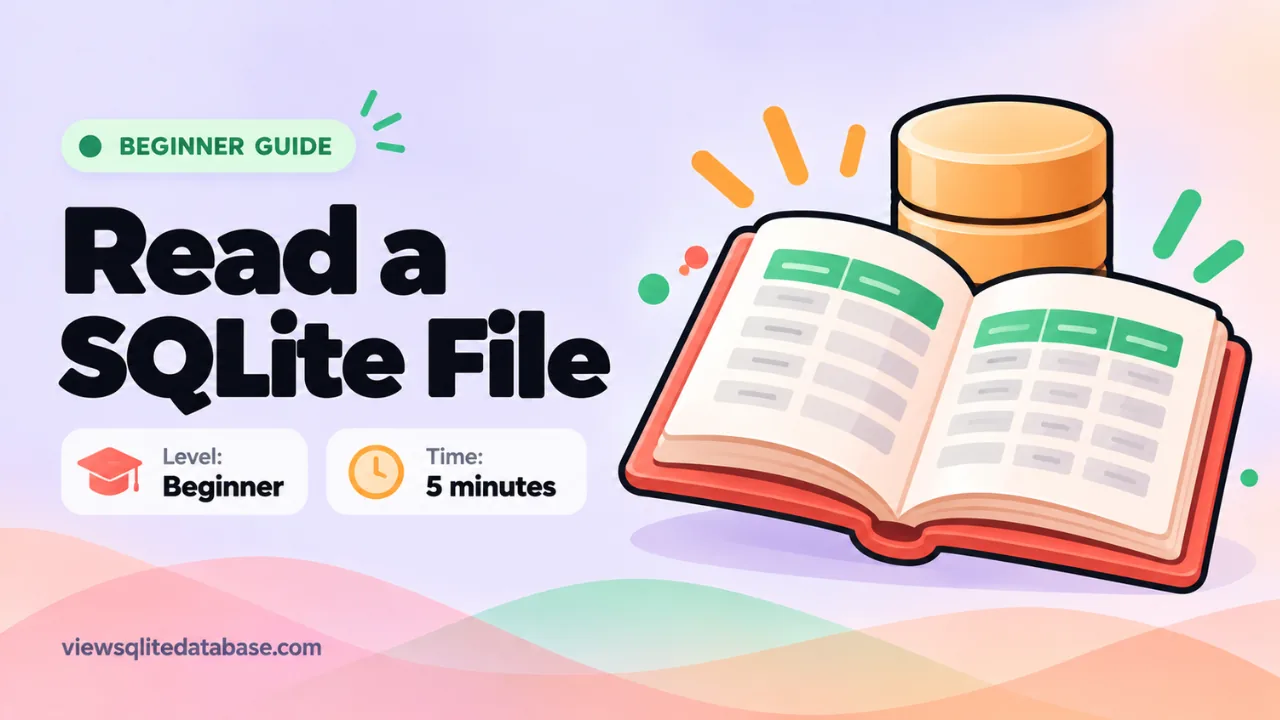
Reading a SQLite file sounds technical. It isn’t. If you can read a spreadsheet, you can read a SQLite database. You just need the right tool and a little context about how the data is laid out.
This beginner’s guide explains what’s inside a SQLite file, how to open it, and how to read its tables with confidence. By the end, you’ll know how to find specific records and export them.
First, what does “reading” a SQLite file mean?
A SQLite file holds a database. A database is a set of tables. Each table is a grid of rows and columns, like a sheet in Excel.
“Reading” the file means opening it with a program that understands this format, then looking at the tables and the rows inside them. You can’t do it in Notepad or Word, because the file is stored in a compact binary format. Open it in a text editor and you’ll see a jumble of symbols with the odd readable word.
So the first job is to pick a reader.
Pick a SQLite reader
You have three good options.
| Reader | Install? | Good for |
|---|---|---|
| Our online SQLite viewer | No | Beginners, any device, private files |
| DB Browser for SQLite | Yes | Large files and heavy editing |
| sqlite3 command line | Mac: no. Others: yes | Developers and scripting |
For a first look, use our free SQLite viewer. It works in any modern browser and keeps your file on your device. If you want to compare every option in depth, see our roundup of the best SQLite viewers.
Step-by-step: read your first SQLite file
1. Copy the file
Copy the database to your Desktop or Downloads folder. Always read a copy, never the original an app is using. This avoids lock errors and protects your data.
2. Open it
Open the online SQLite viewer and drop the file on the page. Within a second or two you’ll see the table list on the left.
3. Get your bearings
Before clicking anything, scan the table list. Look at:
- Names. They usually describe the data:
customers,messages,settings. - Row counts. The biggest tables often hold the main data.
- Views. These are saved queries that combine tables. They’re often the easiest place to start.
4. Click the biggest table
Open the table with the most rows. You’ll see the first 100 rows in a grid. Each column has a name and a type, such as INTEGER or TEXT.
5. Read the columns
Scroll sideways and read each column name. Ask yourself what each one means. An id column is a unique number for each row. Columns ending in _id usually point to a row in another table. Columns called created, date or timestamp hold dates.
6. Sort and search
Click a column header to sort. Type a word into the search box to filter rows. The search checks every column at once, so you don’t need to know where the value is stored.
That’s the core of reading a SQLite file. Everything else builds on these steps.
Understanding how tables connect
Real databases split data across several tables. This avoids repeating the same information. For example, a shop database might have:
customerswith one row per customerproductswith one row per productorderswith one row per order, holdingcustomer_idandproduct_id
To read an order properly, you look up the customer and product it points to. In the viewer, the Structure tab shows foreign keys. A foreign key says “this column matches the id in that table.” It’s your map for joining data.
If you want to see how a table is built in more detail, our guide on listing tables and schemas in SQLite covers it.
Reading values that look odd
Beginners often get stuck on a few types of data. Here’s what they mean.
Numbers that are really dates
SQLite doesn’t have a date type. Apps pick their own format. Large numbers around 1.7 billion are usually Unix time in seconds. Numbers around 1.7 trillion are milliseconds. You can convert seconds with this query:
SELECT datetime(1727308800, 'unixepoch');That returns a readable date and time in UTC.
0 and 1 flags
Many columns store yes or no as 1 or 0. A column called is_read with the value 1 means “read.” SQLite has no separate true or false type, so this is common.
BLOB data
BLOB means binary data. It can be an image, a thumbnail, or packed app data. The viewer shows the size and lets you see the raw bytes in hex. You usually can’t read BLOBs as text.
NULL
NULL means the value is missing. It’s different from 0 or an empty string. Think of it as “nothing was saved here.”
Reading data with simple SQL
You can read a lot without SQL. But a few short queries make you much faster. Open the Run SQL tab and try these.
See the first 20 rows of a table:
SELECT * FROM orders LIMIT 20;Show only some columns:
SELECT name, email FROM customers;Filter rows:
SELECT * FROM orders WHERE total > 100;Count rows:
SELECT COUNT(*) FROM customers;Combine two tables:
SELECT orders.id, customers.name
FROM orders
JOIN customers ON customers.id = orders.customer_id;
Press Ctrl and Enter to run a query. If something is wrong, you’ll see an error in red. Nothing breaks. Fix it and run again.
A worked example: reading a shop database
Let’s put it all together. Open our viewer and click Try a sample database. It loads a small shop with customers, products and orders.
First, look at the sidebar. You’ll see three tables and one view. The orders table has the most rows, so it’s the main data. The view called order_totals already adds up spending per customer.
Now click orders. You’ll see columns called customer_id, product_id, qty and ordered_at. The two id columns point to other tables. So an order row by itself doesn’t tell you who bought what. It just holds numbers.
Switch to the Structure tab. It lists two foreign keys. One links customer_id to the customers table. The other links product_id to products. That’s the map.
Next, open Run SQL and join them:
SELECT c.name, p.name AS product, o.qty
FROM orders o
JOIN customers c ON c.id = o.customer_id
JOIN products p ON p.id = o.product_id
LIMIT 20;
Now each row reads like a sentence: this person bought this many of this product. That’s what reading a database really means. You follow the links until the numbers turn into facts.
Finally, click Export CSV to take the result into a spreadsheet. You’ve gone from an unknown file to a clean report in a few minutes.
Other ways to read a SQLite file
With DB Browser for SQLite
Install the app, click Open Database, choose your file, then use the Browse Data tab. It’s very similar to the online viewer, with more editing options. Read our comparison of DB Browser for SQLite online and desktop to decide which suits you.
With the command line
On a Mac or Linux, open a terminal:
sqlite3 mydata.db
.tables
.headers on
.mode column
SELECT * FROM customers LIMIT 10;
On Windows, download the sqlite3 tools from sqlite.org first. Our Windows guide shows each step.
Getting the data out
Once you’ve read what you need, you’ll often want it somewhere else.
- To use it in a spreadsheet, export to CSV. Our SQLite to CSV guide shows four ways.
- For Excel specifically, see how to convert SQLite to Excel.
- To keep a changed copy of the database, use Download .db.
Common beginner mistakes
- Opening the live file. Always copy first.
- Ignoring the -wal file. If the data looks old, close the app and copy the database again.
- Assuming dates are broken. They’re just stored as numbers. Convert them.
- Getting lost in small tables. Start with the biggest tables or the views.
- Sharing private data by accident. Use a reader that keeps your file local.
Want the technical detail? See the official SQLite SELECT reference.
Frequently asked questions
Can I read a SQLite file in Excel directly?
Not directly. Excel can’t open the SQLite format by itself. Export the table to CSV first, then open the CSV in Excel.
Why does my SQLite file show gibberish in Notepad?
Because it’s a binary database file, not a text file. You need a SQLite reader to turn it into tables.
What if the reader says the file isn’t a database?
The file may be encrypted or compressed. Read our guide to the file is not a database error for causes and fixes.
Is there a size limit?
Our browser viewer loads the file into memory, so the limit depends on your device. A few hundred megabytes works well on most laptops.
Wrapping up
To read a SQLite file, you need a reader, a copy of the file, and a few minutes to learn the layout. Start with the table list, open the biggest table, read the column names, then sort and search. When clicking isn’t enough, a short SQL query will do the rest. Try it now with our online SQLite reader.